

Exporting individual clips from a Premiere Pro timeline should be pretty straightforward, but it can become a tedious process when you have dozens or even hundreds of clips to deliver.
Maybe you've just finished color grading a bunch of footage, trimmed down your favorite takes from a shoot, or applied effects to multiple clips.
Now your client wants each clip exported as its own video file, rather than one long video containing everything.
You could manually set In and Out points and export every clip individually, but that gets old pretty quickly when you're dealing with 50, 100, or even 200 clips.
Fortunately, there are a few ways to export your timeline as individual clips faster, including a method that lets you batch export multiple clips directly from Premiere Pro.
Method 1: Export individual clips manually
The most straightforward way to export an individual clip is to use Premiere Pro's In and Out points to define the section of your timeline you want to export.
Here's how:
- Open your sequence in Premiere Pro and select the Timeline panel.
- Move your playhead over the clip you want to export and press X to mark the clip, or manually press I and O to set your In and Out points.
- Press Ctrl + M on Windows or Cmd + M on Mac to open the Export window.
- Make sure the export range is set to Source In/Out.
- Choose your export format, preset, filename, and destination.
- Click Export, or send the job to Adobe Media Encoder.
Repeat those steps for each clip you want to export.
This method works well when you only need a handful of files. You also have complete control over the export settings and can check each clip before exporting it.
The downside is that you're repeating the same steps for every single clip.
And while Adobe Media Encoder lets you queue several exports, you still have to prepare and add those individual ranges to the queue.
If you're dealing with a large batch of footage, that can take a considerable amount of time.
Method 2: Use subsequences and Adobe Media Encoder
Another option is to turn your edited clips into separate subsequences and batch export the sequences together using Adobe Media Encoder.
A subsequence is essentially a separate sequence created from a portion of your existing timeline.
This can be useful when you want to export multiple edited sections while keeping the timeline edits contained within each sequence.
Here's the general workflow:
- Open the timeline containing the clips you want to export.
- Set In and Out points around the first section.
- Use Sequence > Make Subsequence to create a new sequence from that range.
- Repeat for the remaining clips or sections you want to export.
- Organize and rename the resulting subsequences in your Project panel.
- Add the subsequences to Adobe Media Encoder and choose your export settings.
- Start the queue to export them as separate video files.
If you haven't used Media Encoder's queue before, Adobe's guide to encoding and exporting with Media Encoder covers presets and queue settings in more detail.
The advantage of this method is that you can prepare all your exports first and let Adobe Media Encoder process them afterward.
You can also keep more of your timeline editing intact than you would by simply exporting the original source files.
However, there's still a fair amount of manual setup involved.
If you need to export 100 individual clips, creating, naming, and organizing 100 subsequences isn't particularly enjoyable.
And if you're regularly delivering large batches of footage, there's a much easier way to handle it.
Method 3: Batch export clips with Cockpit
If you frequently need to export multiple clips separately, you can automate much of the process with Cockpit for Premiere Pro.
Cockpit is a Premiere Pro plugin that includes a Batch Export tool, designed to let you export multiple clips or sequences without setting up every export individually.
Instead of manually marking In and Out points for every clip or creating dozens of separate subsequences, you can handle the batch through one tool.
Here's the basic workflow:
- Open Cockpit in Premiere Pro.
- Launch the Batch Export tool.
- Select the clips you want to export in your timeline.
- Choose a preset, format, and destination folder.
- Click Export Selected Clips and check the resulting files.
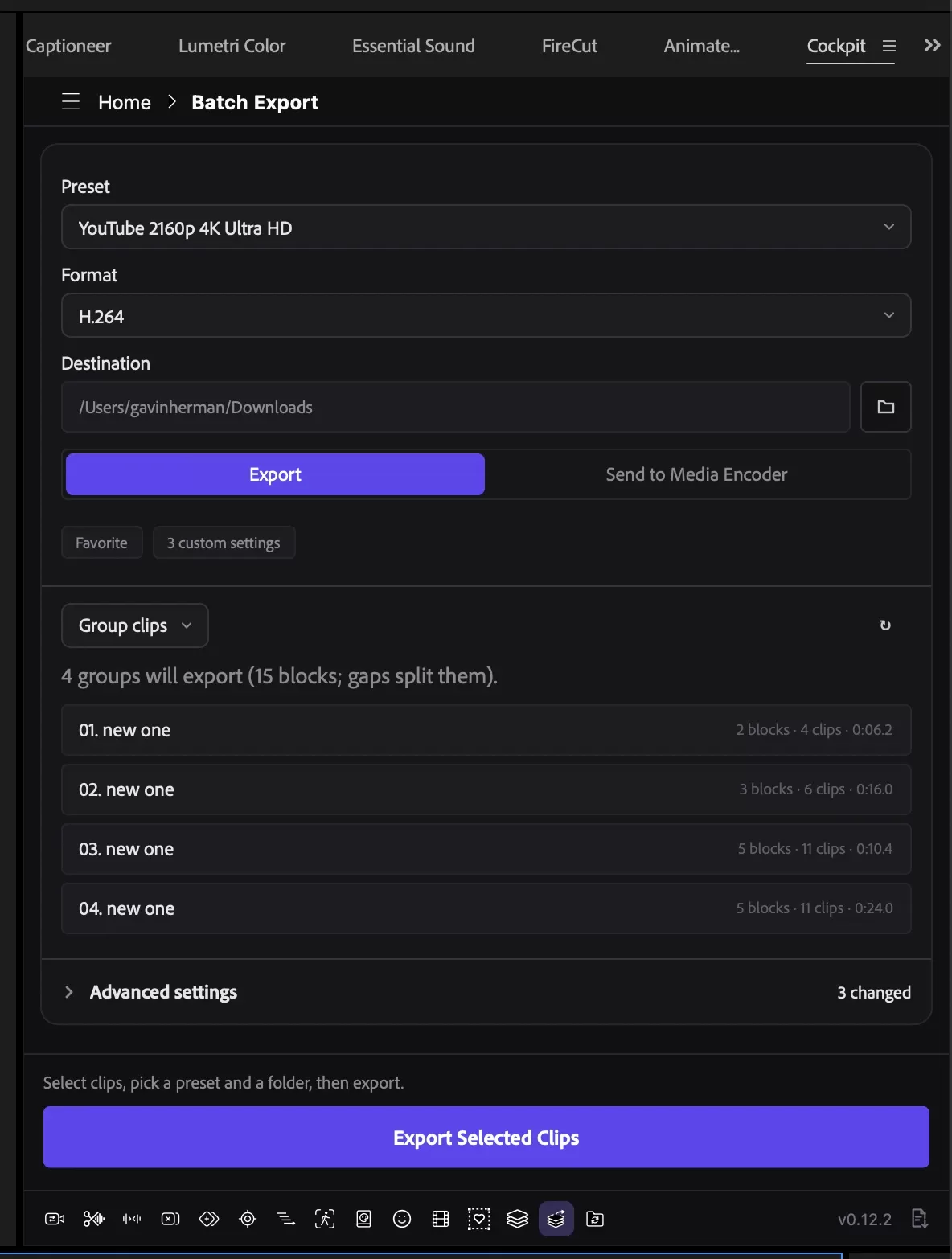
That's it. Instead of preparing each export one by one, you can set up the batch and let Cockpit handle the repetitive work.
You can export directly from Premiere Pro, or click Send to Media Encoder if you'd rather queue the jobs and keep editing while they render.
Keep your exported files organized
One of the other challenges with exporting a large number of clips is keeping everything organized.
If you're delivering 100 selects to a client, you probably don't want to manually name every export.
A consistent naming structure makes the files much easier to sort, review, and hand off.
For example, instead of ending up with files named Export_1, Export_2, and Final_Final_3, you might want something like:
- Client_Select_001.mp4
- Client_Select_002.mp4
- Client_Select_003.mp4
In Cockpit's Advanced settings, you can build the file name from tokens such as {index}, {name}, {sequence}, and {preset}, so every file in the batch follows the same pattern. The same panel lets you override the resolution, frame rate, bitrate, and audio settings of your preset.

It's a small detail, but one that can make a big difference when you're managing large client deliveries.
More than just batch exporting
Batch Export is also only one of the tools included with Cockpit.
It includes tools for searching and applying effects, transitions, and presets directly from your keyboard, automatic podcast editing, motion tracking, and several other repetitive editing tasks.
So even when you're not exporting footage, Cockpit can help speed up other parts of your Premiere Pro workflow.
How to export clips with effects and color grading
One important thing to keep in mind when exporting individual clips is whether you want to export the original footage or the edited version from your timeline.
These aren't always the same thing.
For example, imagine you've imported a bunch of LOG footage, trimmed each shot, applied Lumetri Color corrections, and added Warp Stabilizer to a few clips.
If you export the original source files from your Project panel, you won't necessarily get the trimmed, color-corrected results you're seeing in your timeline.
That's because effects applied to timeline clips aren't automatically the same as effects applied to the original source footage.
If you want to deliver the finished versions of your individual shots, make sure your export method uses the edited timeline content rather than just the original media.
What about adjustment layers?
This is another thing worth checking.
If you've applied a color grade to an adjustment layer above your clips, you need to make sure that adjustment layer is included in the exported result.
The same goes for graphics, overlays, nested sequences, and effects that depend on multiple tracks.
Different export methods can handle these situations differently, so don't assume that everything visible in your timeline will automatically be included.
Before exporting an entire batch, try exporting a few clips with different types of effects and compare the results with your original timeline.
Check your exported clips before delivery
Regardless of which method you choose, I'd recommend checking a few files before sending everything to your client.
Make sure to verify:
- In and Out points: The exported clips start and end on the correct frames.
- Color grading: Your Lumetri Color adjustments and other corrections are included.
- Effects: Stabilization, transforms, and other effects appear correctly.
- Audio: The correct audio is included and synchronized.
- Resolution and frame rate: Your files match the required delivery specifications.
- File naming: Each export has the correct name and is saved to the right location.
If you're exporting a large batch, check the first file, one from the middle, and the last file.
It's much easier to catch a problem with three exports than to discover it after delivering 200.
What's the fastest way to export individual clips in Premiere Pro?
If you only need to export a few clips, setting In and Out points manually is probably the simplest option.
If you have several edited sequences to deliver, using subsequences and Adobe Media Encoder can help you organize the process.
But if you're regularly exporting dozens or hundreds of individual clips, manually setting up each export can become a huge waste of time.
That's where Cockpit's Batch Export tool comes in.
Instead of repeatedly marking ranges, creating subsequences, and preparing exports one by one, you can automate much of that work and spend more time actually editing.
And since Cockpit includes a collection of other Premiere Pro tools, it's useful for considerably more than just exporting footage.
Try Cockpit free for 14 days and see how much time you can save on your next batch export.
Frequently asked questions
Can you export multiple clips separately in Premiere Pro?
Yes. You can manually export individual timeline ranges or create separate subsequences and queue them in Adobe Media Encoder.
You can also use a plugin like Cockpit to batch export multiple clips or sequences without preparing every export individually.
Can you export individual clips with effects applied?
Yes, but it depends on your export method.
If you export a rendered section of your edited timeline, effects such as Lumetri Color and Transform can be included in the output.
However, exporting the original source clips from your Project panel won't necessarily include the edits you applied to those clips in your sequence.
It's worth checking your exported results, especially if you're working with adjustment layers or multiple video tracks.
Does Adobe Media Encoder automatically export every timeline clip separately?
Not by itself.
Adobe Media Encoder can process multiple export jobs, but it doesn't automatically turn every clip in your Premiere Pro timeline into a separate export job.
You still need to prepare the individual clips, ranges, or sequences before adding them to the queue.
Can you batch export multiple sequences in Premiere Pro?
Yes. You can queue multiple sequences in Adobe Media Encoder and export them as separate files.
Cockpit also includes Batch Export functionality for exporting multiple clips or sequences.
What's the easiest way to export 100 clips from Premiere Pro?
For large batches, a dedicated batch export workflow is generally more convenient than manually setting In and Out points for every clip.
Cockpit's Batch Export tool is designed for this kind of task, letting you prepare multiple exports together rather than repeating the same process for each clip.