
Applying effects in Premiere Pro is simple enough. But when you're constantly jumping between your timeline and the Effects panel, it can get tedious.
Say you want to add Gaussian Blur to a clip. You open the Effects panel, search for Gaussian Blur, drag it onto your clip, and then return to your timeline.
Not a huge deal on its own. But when you're applying effects dozens, if not hundreds of times throughout an edit, all that extra clicking adds up.
Fortunately, there are a few ways to speed things up.
Method 1: Use Premiere Pro's Built-In Effects Search
The standard way to find and apply effects is through Premiere Pro's Effects panel.
- Open the Effects panel by going to Window > Effects.
- Click the search bar and type the name of the effect you want.
- Drag the effect onto your clip in the timeline.
- Open Effect Controls to adjust its settings.
This works fine, especially if you only need to apply a few effects.
You can also create custom effect presets to save settings you use frequently, by simply selecting the effects in the Effect Controls panel, right-clicking, and choosing Save Preset. For example, if you regularly use the same Transform settings for your animations, saving them as a preset means you won't have to rebuild those settings every time.
The downside is that you still need to find and apply those effects or presets manually.
Method 2: Use Keyboard Shortcuts
Premiere Pro has a customizable keyboard shortcut system that can help reduce the amount of time you spend navigating between panels.
By default, the shortcut to access the Effects panel is Shift + 7.
But you can also customize that shortcut:
- Windows: Edit > Keyboard Shortcuts
- Mac: Premiere Pro > Keyboard Shortcuts
It's a useful improvement, but there's still a limitation: opening the Effects panel, finding your effect, and applying it aren't combined into one action.
If you want to search for and apply effects directly to a selected clip from your keyboard, there's a faster option.
Method 3: Search and Apply Effects Instantly With Cockpit
Cockpit is a Premiere Pro plugin that lets you search for and apply effects, transitions, presets, and more without digging through menus or panels.
Instead of manually searching through the Effects panel, you can pull up Cockpit with a keyboard shortcut, type a few letters to find the effect you need, and press Enter to apply it.
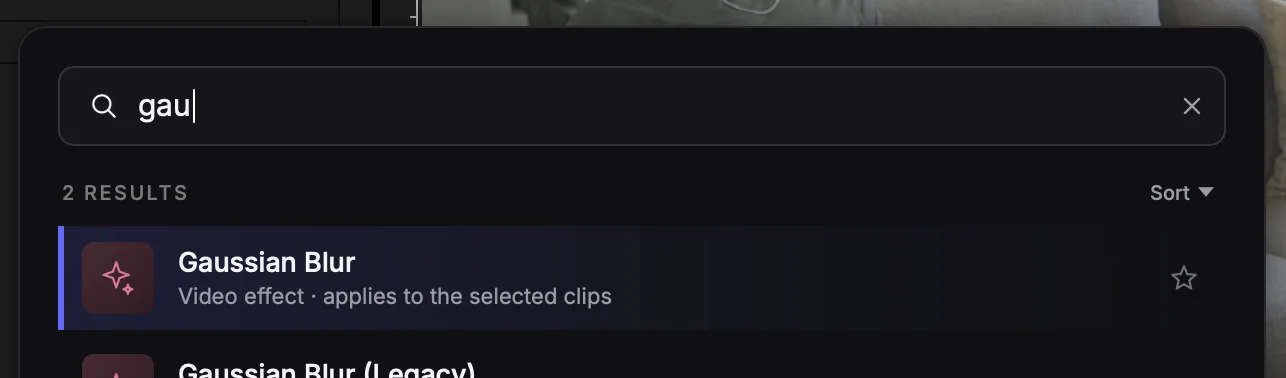
Here's how it works:
- Select a clip in your Premiere Pro timeline.
- Open Cockpit using your assigned keyboard shortcut.
- Type the effect name, such as Gaussian Blur.
- Press Enter to apply it to your selected clip.
That's it. No dragging effects onto your timeline or switching between panels.
And it isn't limited to video effects. Cockpit also lets you search for audio effects, transitions, and even your own custom presets. Cockpit also includes custom Premiere Pro commands and other editing tools, all accessible from the same interface.
Make Your Most-Used Effects Even Faster to Access
Searching for effects is already quicker with Cockpit, but if you use the same handful of effects every day, you can take it a step further.
Cockpit lets you assign keyboard shortcuts to effects, transitions, presets, and supported commands.
For example, if you're constantly applying Transform to create animations, you could give it a dedicated shortcut.
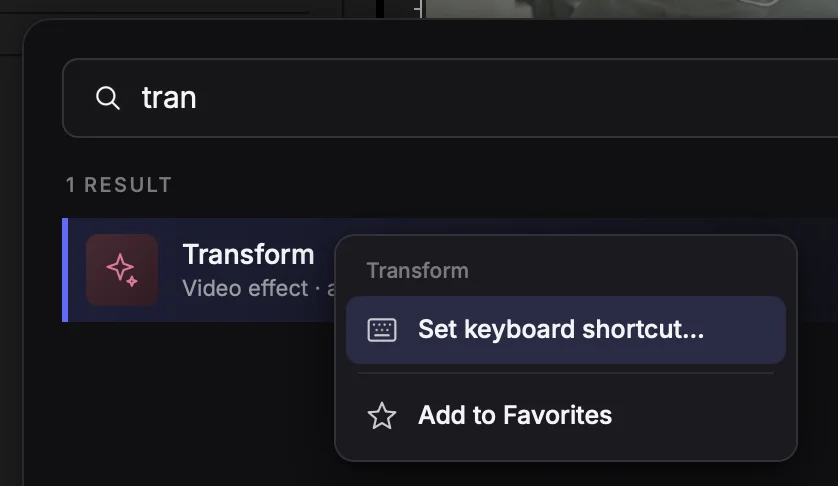
You can also favorite the effects and tools you use most often so they're easier to find.
Instead, assign dedicated shortcuts to the actions you use constantly and use Cockpit's search for everything else.
That way, you get the speed of keyboard shortcuts without needing to memorize a hundred different combinations.
What's the Fastest Way to Apply Effects in Premiere Pro?
If you only apply a few effects per project, Premiere Pro's built-in Effects panel might suffice.
But if you're constantly reaching for effects, transitions, and presets, having a single place to search for and apply them can make editing considerably more convenient.
That's exactly what Cockpit is designed for.
Instead of spending time navigating Premiere Pro's interface, you can find what you need, apply it, and get straight back to editing.
Try Cockpit free for 14 days and see how much faster your workflow can be.